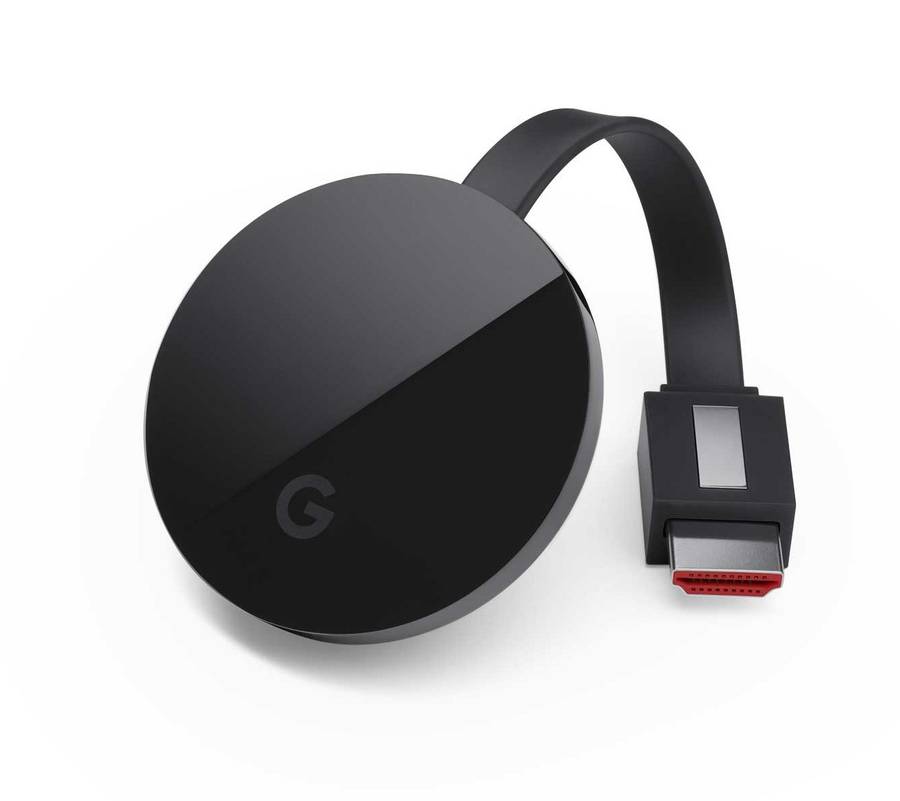
- You'll enjoy a crisper picture, deeper color, and smoother video when streaming 4K content to a 4K TV with Chromecast Ultra*.
- Whether your TV is 4K or HD, Chromecast Ultra automatically optimizes your content for the best picture quality possible.
Unlimited entertainment, all on your schedule
- Choose from 4K-enabled apps like DStv Now, Netflix and YouTube, or browse over 200,000 TV shows & movies, 30 million songs, plus radio, sports, games, and more. Discover a range of free, subscription or paid content from thousands of apps.
Small on size, big on performance
- Get your shows playing faster, smoother, and more reliably with Chromecast Ultra's robust processing power. Even if your WiFi network isn't ready for the demands of 4K, Chromecast Ultra has comes with an Ethernet adapter so you can enjoy rock solid streaming over a wired connection.
Everything you love about Chromecast
- Use Chromecast Ultra to get the best performance from your 4K TV, while still enjoying all the features that already come with Chromecast.
PLEASE NOTE
- While Chromecast Ultra will work on any HDTV with an HDMI port, it requires a 4K-compatible HDTV and a broadband Internet connection to stream content in 4K. 4K programming is subject to availability from content providers.
- Subscriptions may be required to access certain content. Performance of certain Chromecast features, services and applications depends on the device you use with Chromecast and your internet connection. Certain features, services and applications may not be available in all areas. Chromecast is compatible with WiFi-enabled Android 4.1+ smartphones and tablets; iOS 8.0+ iPhone®, iPad®, and iPod®; Chrome for Mac® and Chrome for Windows®; and ChromeOS. Mirroring is available on most Android devices.
- SA Adapter Plug Included (2-pin US to EU adapter)
To setup Chromecast
Step 1: Plug in your Chromecast device
Plug Chromecast into your TV, then connect the USB power cable to your Chromecast. Plug either the other end of the USB power cable into an open USB port on your TV OR into the included power adapter which you will then plug into a power outlet.
Note: Only use the provided AC adapter.
Step 2: Connect your Chromecast device
Double check that the Chromecast and the mobile device or tablet you are using to set up Chromecast with are both on the same Wi-Fi network.
Step 3: Download the Google Home app
On your mobile device or tablet, download the Google Home app  .
.
Step 4: Set up Chromecast
Follow these simple Chromecast setup instructions.
Step 5: Cast content
Learn how to cast from Chrome to your TV or cast from Chromecast-enabled apps to your TV.